-
Continue reading →: CALCULATE WORK HOURS – FORMATTING
In the previous part we did some examples on calculating working hours. In this part we are going to do the same, but using another approach. Because the D column now is in a Number format, we can make further calculations in this later on.
-
Continue reading →: CALCULATING WORKING HOURS
In the previous part we calculated work ours between two times, but often we have to include a lunch break.
-
Continue reading →: CALCULATE TIME DIFFERENCE
A common task in Excel is to calculate working ours, this can be tricky due to different formats and formatting. Above we have a start time and end time, and we are going to calculate the total hours worked.
-
Continue reading →: Excel Formula for Tracking Work Hours
This Excel task involves tracking employee working hours by calculating time differences. First, compute the time between IN and OUT with =E2-B2, then the lunch duration with =D2-C2. Finally, combine these results using =((E2-B2)-(D2-C2)). Maintain custom formatting throughout the process.
-
Continue reading →: COMPARE COLUMNS FOR MISSING VALUES
This content explains how to use Excel functions to compare two lists of fruits. It demonstrates how to utilize VLOOKUP to identify missing values from List B when compared to List A. By wrapping VLOOKUP in ISNA and combining it with FILTER, the specific missing fruits from List A can…
-
 Continue reading →: LOTTERY NUMBER GENERATOR – WITHOUT DUPLICATES
The content explains how to generate 7 unique random numbers between 1 and 50 using Excel functions. It utilizes RANDARRAY to create a pool of 150 integers, then filters unique values with UNIQUE. Finally, it employs INDEX and SEQUENCE to extract the first 7 values from the unique set.
-
 Continue reading →: Lottery number generator
To simulate a number generator in Excel, use the RANDARRAY function with the formula =RANDARRAY(1;7;1;50;TRUE) to generate 7 integers between 1 and 50 in a single row. Be aware that duplicates may occur when applying this formula.
-
 Continue reading →: RANDOM VALUE FROM LIST
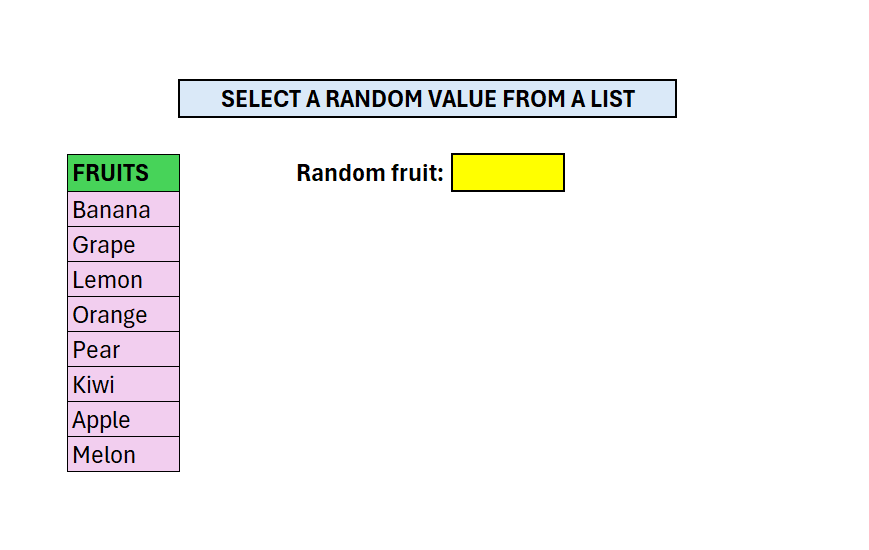
Above we have a column of different fruits, our goal is to select a random one from that list. We will use a combination of 3 different formulas: The first step is to calculate how many values we have, excluding the header
-
 Continue reading →: EXCEL – REMOVE QUOTES FROM STRING
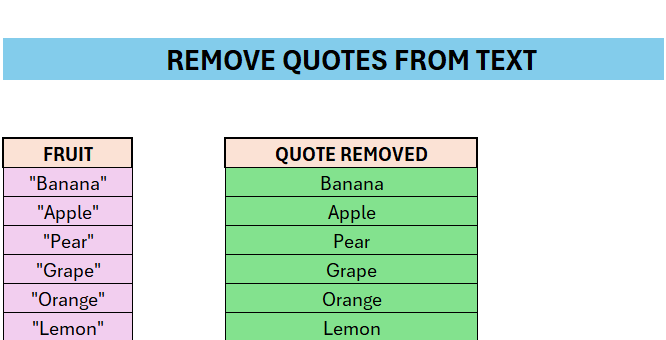
Sometimes we need to remove different symbols or characters from cells. Here we are going to look at how we can remove quotes from a string.
-
 Continue reading →: EXCEL – EXTRACT TEXT BETWEEN QUOTES
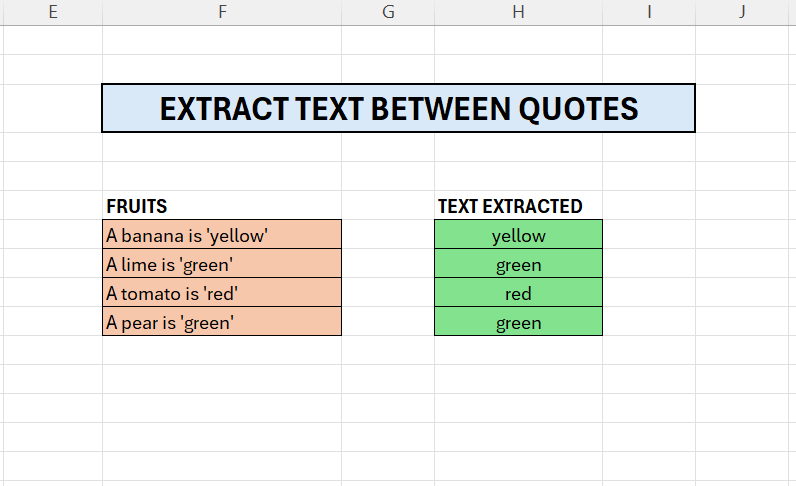
To extract text between quotes we can use a number of different techniques. In this article we will explore two function: In column F we have some sentences, the color in quotes, in column H we have extracted the color. The TEXTAFTER extracts the data after the first quote
Hi,
I’m Henrik
Welcome to Excel tutorials made easy. This site is full of easy to follow tutorials
Join the fun!
Stay updated with our latest tutorials and ideas by joining our newsletter.
 Excel tutorials